
Introduction: Unlock the Power of Your CNC Router
Welcome to the world of CNC routing! You own a powerful machine. It can transform your designs into physical objects. But you might be wondering: How do I tell it what to do?
This detailed guide is for you. We will break down the process of CNC programming. It doesn’t matter if you are a beginner. You will gain the knowledge you need. You will start making incredible things today.
A CNC router is a computerized cutting tool. It needs a special language. This language is called G-code. We will guide you from a simple idea to the final G-code. Let’s get started on this exciting journey!
Understanding CNC Programming Basics
CNC programming is like writing a recipe. This recipe tells the machine every move. It specifies the speed, path, and depth. It needs to be precise.
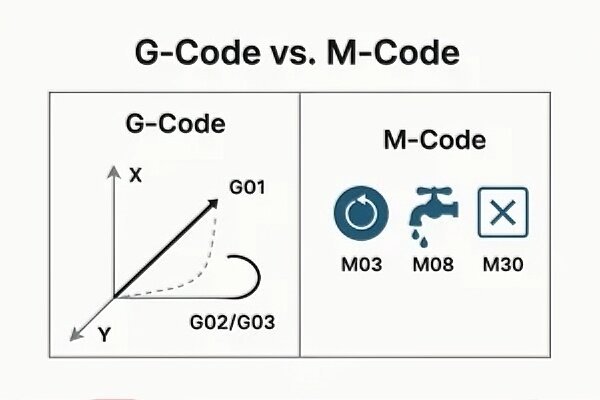
1. What is G-Code and M-Code?
- G-Code stands for Geometric Code. It controls the machine’s movement. It tells the spindle where to go. Examples are G00 (Rapid move) and G01 (Linear move).
- M-Code stands for Miscellaneous Code. It controls machine functions. It turns things on or off. Examples are M03 (Spindle On) and M05 (Spindle Off).
- G-Code is the core language. Every CNC machine uses it. It is the language of manufacturing.
2. The CNC Program Workflow
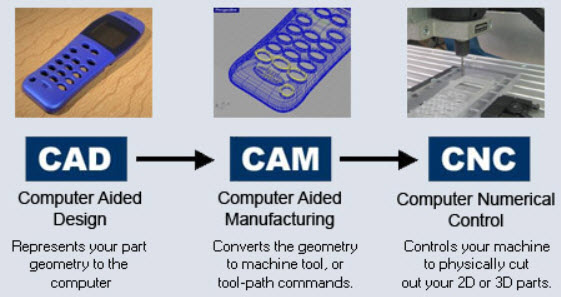
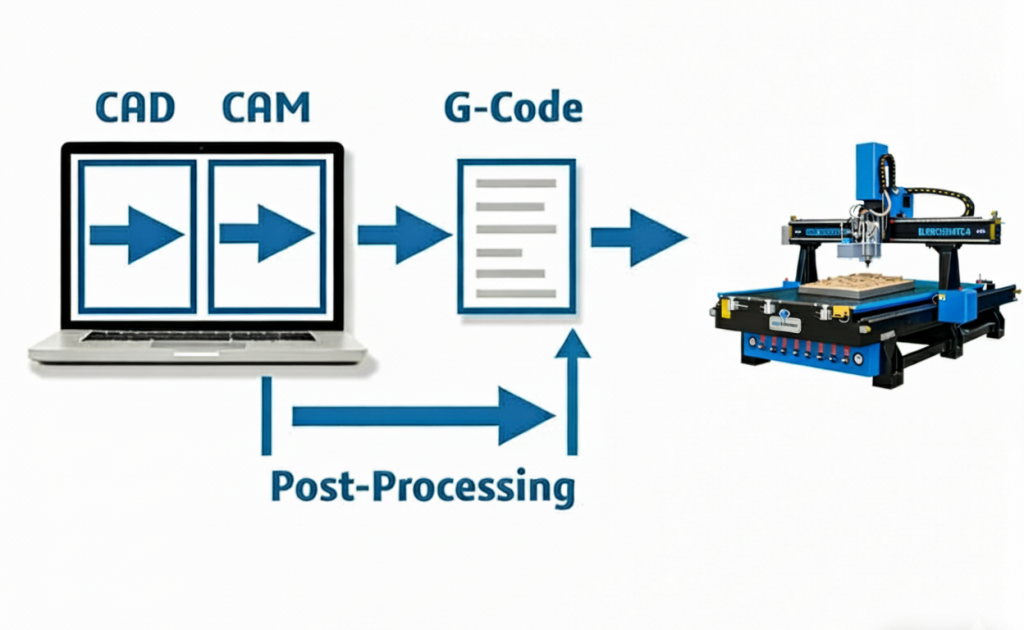
- Programming follows a simple order. It has three main steps. This is often called the CAM process.
- Design (CAD): Create your design. This is done in 2D or 3D software.
- Toolpath (CAM): Convert the design into tool movements. This is the main programming step.
- Execution (CNC): The machine reads the G-code and cuts the material.
3. Cartesian Coordinates Explained
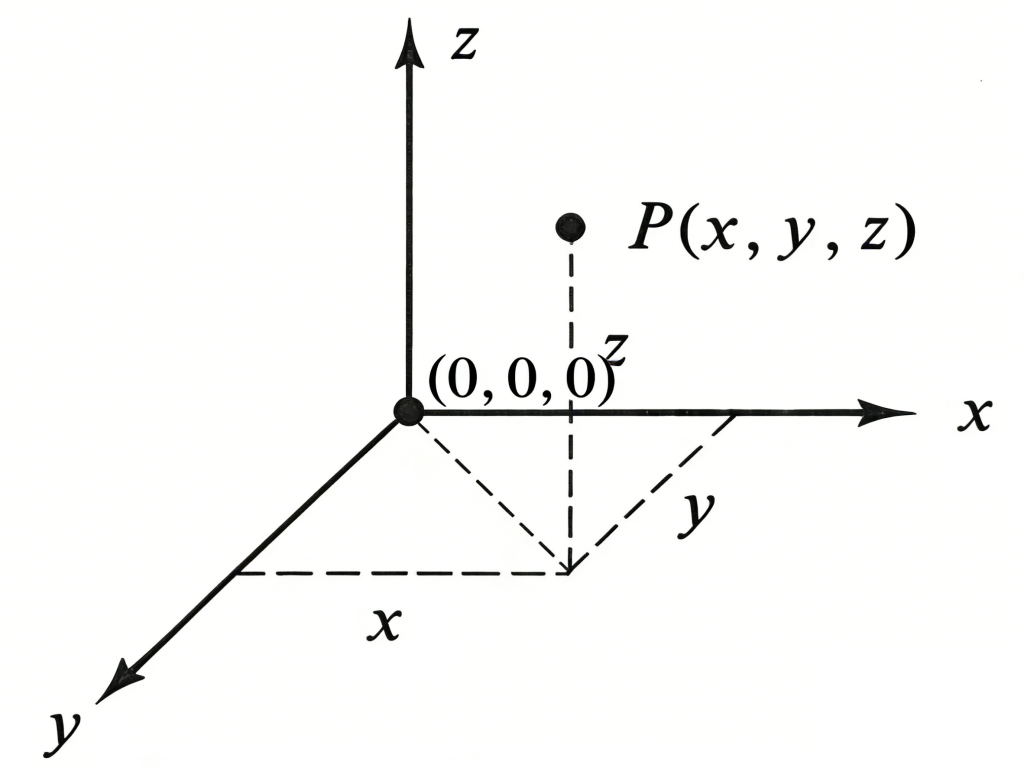
CNC machines use a coordinate system. It is called the Cartesian system. This system uses three axes.
- The X-axis is the side-to-side movement (left/right).
- The Y-axis is the front-to-back movement (forward/backward).
- The Z-axis is the up-and-down movement (depth/height).
All movements are defined by these coordinates. Zero (0,0,0) is the starting point.
Stage 1: Design and Geometry (CAD)
Programming starts with a clean, well-defined digital model. Garbage in means garbage out.
1. Set Up the Model Space
- Action: Launch your preferred CAD software (e.g., Fusion 360, SketchUp).
- Detail: Ensure your drawing units are set correctly (e.g., millimeters or inches). Consistency is vital. If your machine runs in inches, design in inches.
- Tip: Start your drawing at the Global Origin (0,0,0). This often simplifies alignment later in the CAM stage.
2. Define the Cutting Geometry
- Action: Draw or import your intended design.
- Detail: All shapes must be closed vectors. An open line will confuse the CAM software, leading to programming errors. Use the “Join” or “Connect” command to ensure lines meet perfectly.
- Consideration: If V-Carving, ensure your text or lines have the appropriate width for the V-bit you plan to use.
Stage 2: Material and Origin Definition (CAM Setup)
Before generating toolpaths, you must define the physical world for the computer.
1. Define the Stock Size
- Action: Enter the exact physical dimensions of your material block into the CAM setup.
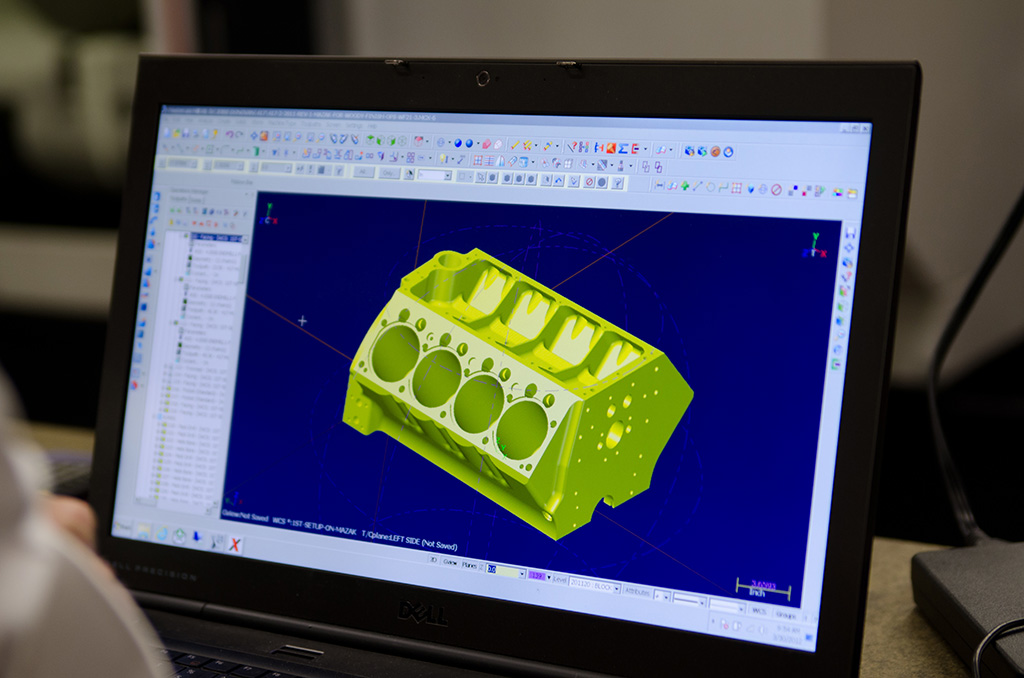
- Detail: Specify the Length (X), Width (Y), and Thickness (Z). Be precise; even small errors here can lead to the machine cutting into your table (spoil board).
- Example: If you are cutting a 3/4 inch plywood sheet, set the Z thickness to 0.75 inches.
2. Set the Work Coordinate System (WCS)
- Action: Define the Work Origin (0,0,0) point within the CAM software.
- Detail: For Blue Elephant machines, the origin is usually set to the Bottom Left Corner (X min, Y min) of the stock, at the Top Surface (Z max) of the material.
- Code Translation: This point will correspond to where you physically “zero” the machine’s axes before starting the cut.
Stage 3: Tool Selection and Definition
The machine only cuts as well as the tool you define. Accuracy here prevents breakage.
1. Choose the Physical Tool
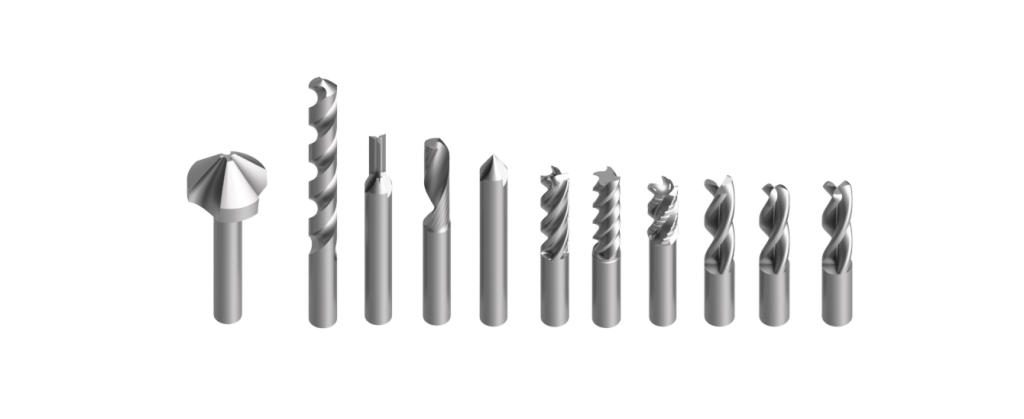
- Action: Select the specific cutter (end mill, V-bit, etc.) you will load into the spindle.
- Detail: Consider the material: Carbide for hardwoods and aluminum; HSS (High-Speed Steel) for softer materials. Ensure the tool diameter matches the smallest features in your design.
2. Define Tool Parameters in CAM
- Action: Enter the exact dimensions of your selected tool into the CAM tool library.
- Detail: This includes Diameter, Flute Length (Cutting Length), and Shank Diameter. If you use a V-bit, input the Angle (e.g., 90°or 60°). The CAM software uses these values for collision detection.
Stage 4: Defining Feeds, Speeds, and Depths
These parameters control the machining rhythm. Incorrect settings break tools and ruin surfaces.
1. Calculate Spindle Speed (RPM) and Feed Rate (IPM)
- Action: Input the Spindle Speed (S) and Feed Rate (F) into the tool settings.
- Technical Detail: These are calculated based on the desired Chip Load (the thickness of the material chip removed by each flute per revolution).

- Best Practice: For general use on wood with a 1/4 inch two-flute end mill, try S=18,000 RPM and F=100 IPM. Consult machining charts for specific hard materials like aluminum.
2. Set the Stepdown (Depth of Cut)
- Action: Specify the maximum depth the tool will cut in a single pass along the Z-axis.
- Detail: A safe and common rule for wood is to set the maximum Stepdown to 50% of the tool’s diameter. For a 1/2 inch tool, set the stepdown to 0.25 inches. Harder materials require much smaller stepdowns (e.g., 10% to 25%).
3. Define Plunge and Ramp Rates
- Action: Set the vertical entry speed.
- Detail: The Plunge Rate should be slow—usually 20% to 40% of the main Feed Rate (F). To protect the tool tip, enable Ramping, where the tool enters the material gradually over a defined distance instead of plunging straight down.
| Material Type | Recommended Stepdown (Max % of Tool Dia.) | Ideal Spindle Speed (RPM) | Feed Rate (IPM) |
| Softwood (Pine, Poplar) | 50% | 16,000 – 20,000 | 120 – 180 |
| Hardwood (Maple, Oak) | 30% – 40% | 12,000 – 16,000 | 60 – 100 |
| Plastics (Acrylic, HDPE) | 25% – 35% | 10,000 – 14,000 | 40 – 70 |
| Aluminum | 10% – 15% | 6,000 – 10,000 | 20 – 40 |
Stage 5: Generating and Verifying Toolpaths
This is the core programming phase where movement commands are created.
1. Apply Toolpath Strategies
- Action: Select the appropriate toolpath based on your design need.
- Contour/Profile: Select this for external or internal cuts. Specify Climb Milling (chip removed gradually) or Conventional Milling (tool pushes against the cut). Climb is usually preferred for a better finish.
- Pocketing: Choose Clear Pocket and define the depth. Use a Stepover (side-to-side movement) of 40% to 60% of the tool diameter for efficient material removal.
2. Run the Toolpath Simulation
- Action: Before exporting the G-code, run the visual simulation within your CAM software.
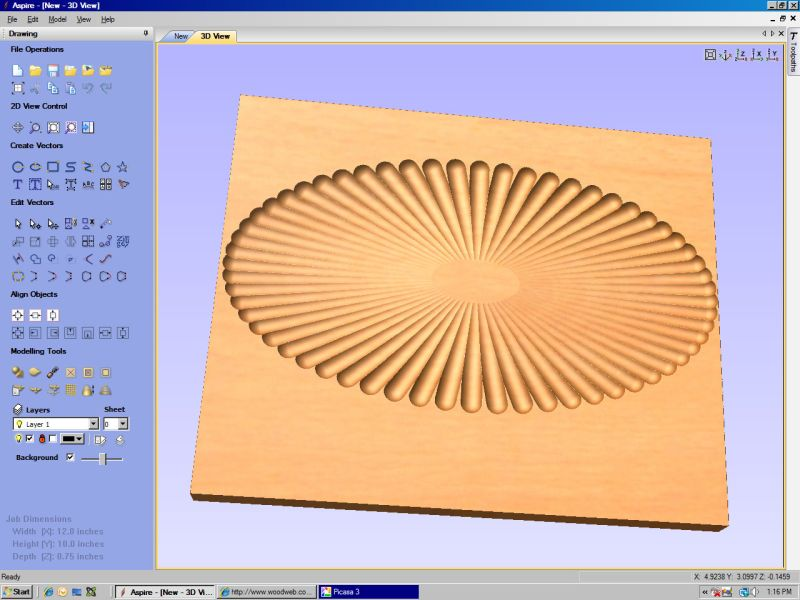
- Detail: Crucially, watch for:
- Gouging: Does the tool cut where it shouldn’t?
- Uncut Material: Are all areas cleared to the correct depth?
- Lead-In/Lead-Out: Do the tool’s entry and exit points look safe and smooth?
- Verification: If the simulation looks wrong, go back to Stage 4 and adjust your depths or strategy.
Stage 6: Post-Processing and G-Code Export
The translation step that creates the machine-readable file.
1. Select the Correct Post-Processor
- Action: Choose the specific post-processor file tailored for your CNC machine and controller type (e.g., Mach3, Syntec, DSP).
- Detail: This file translates the generic toolpath data into the precise dialect of G-code your specific machine firmware understands (e.g., setting the start header, tool change codes). Using the wrong post-processor is the #1 cause of machine errors.
2. Export the G-Code File
- Action: Click “Post Process” or “Export” and save the resulting file (e.g., .nc, .tap, or .gcode).
- Inspection: Open the exported G-code in a simple text editor. The beginning should contain a header with your tool and material info. Look for the start of the movements, typically with G90 (Absolute Coordinates) and G20/G21 (Inches/MM) set.
Stage 7: Machine Operation and Execution
Your program is ready. It’s time to bring it to life on your Blue Elephant router.
1. Set Up the Physical Workpiece
- Action: Secure the material firmly using clamps or the vacuum system.
- Detail: Ensure clamps are positioned so the toolpath will never collide with them. Double-check material flatness.
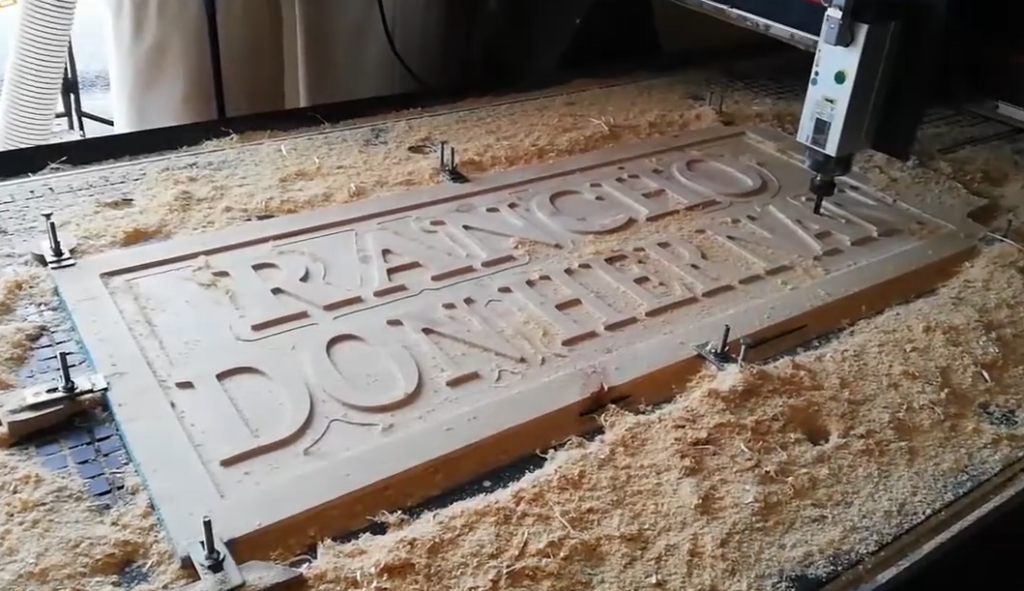
2. Zero the Axes on the Machine
- Action: Jog the machine using the pendant or controller to physically locate the Work Origin (0,0,0) you defined in Stage 2.
The video below shows how to set zero point:
- X/Y Zero: Use an edge finder or visually align the tool center to the bottom-left corner of the material. Set the X and Y zeros.
- Z Zero: Use a Z-axis tool setter. Place the setter on the material surface, lower the tool until contact, and the controller will automatically calculate and set the Z zero point.
3. Run the Program
- Action: Load the G-code file onto the controller and initiate the cut.
- Safety Protocol: Stand ready with your hand near the Emergency Stop (E-Stop). Observe the first few passes carefully. If you see smoke, hear high-pitched screaming, or notice excessive vibration, hit the E-Stop and go back to Stage 4 to adjust Feeds and Speeds.
Conclusion: Master Your Precision
Mastering CNC router programming is a highly valuable skill. By diligently following the seven stages—from setting up your CAD geometry to accurately zeroing the machine—you gain full control. Precision is the direct result of meticulous programming.
Blue Elephant builds stable and reliable CNC routers. Our machines ensure your precise G-code executes with excellent stability and speed. They are the solid platform for your high-performance programming work.
We are here to help you succeed. Whether you are planning to purchase new equipment or have any questions about programming or operation, we welcome you to contact us anytime.
Discover more insights in these articles: